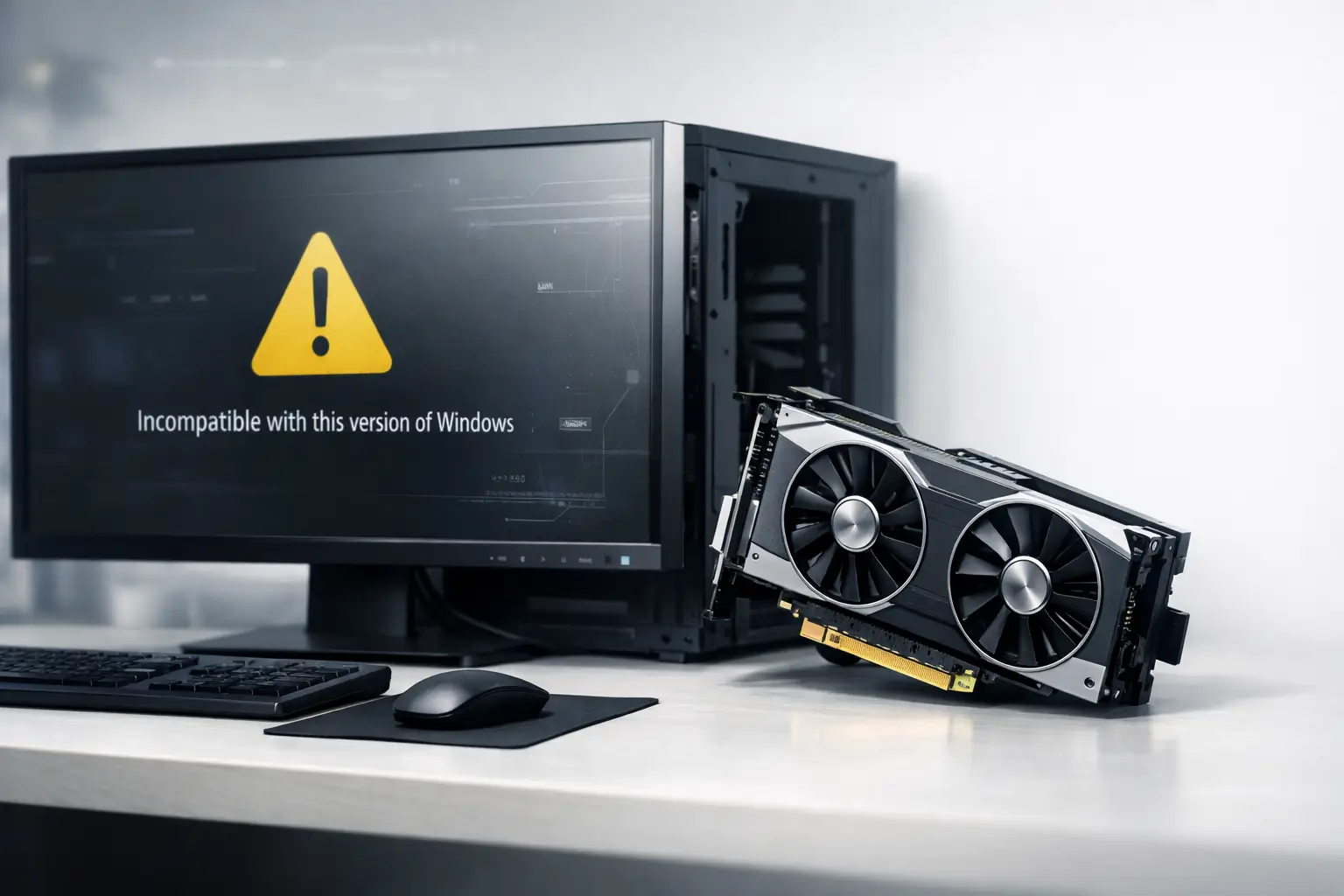
If you’re seeing the “NVIDIA driver not compatible with this version of Windows” error, you’re not alone. It usually appears right when you try to install or update your graphics driver, and it stops everything immediately.
At first glance, it looks like something is broken. In reality, this error is almost always caused by a mismatch between your system and the driver package you’re trying to install.
I’ve faced this across fresh Windows installs, gaming PCs, and laptops. Once you understand where the mismatch happens, the fix becomes much simpler.
Why This Error Happens
When you install a driver from NVIDIA, the installer checks a few important things before proceeding:
- Your Windows version and build
- Your GPU model
- Your system architecture (32-bit or 64-bit)
- Driver compatibility support
If any of these don’t match, the installation fails instantly. This is also why many users run into NVIDIA driver installation and update errors even when everything seems correct.
—
Step 1: Check Your Windows Version First
Before trying anything else, check your current Windows version.
Press Windows + R, type winver, and check your build. New NVIDIA drivers are designed for specific Windows versions, and if your system is outdated, installation will fail.
Here’s what you should do:
- Go to Settings → Windows Update
- Install all available updates
- Restart your system
In many cases, this alone fixes the issue. If your system has had recent updates, you might also run into Windows update conflicts with NVIDIA drivers, which can create similar problems.
—
Step 2: Download the Correct Driver (Most Common Mistake)
This is where many users go wrong.
Not all drivers are interchangeable. Even small differences in GPU models can cause compatibility issues.
To avoid this:
- Open Device Manager
- Check your exact GPU name under Display adapters
- Download the matching driver manually from NVIDIA’s official site
A wrong or mismatched driver can lead to installation failure or even system instability later, including issues like games crashing after an NVIDIA driver update.
—
Step 3: Make Sure Your System is 64-bit
Modern NVIDIA drivers do not support 32-bit systems anymore.
- Go to Settings → System → About
- Check “System type”
If your system is 32-bit, you’ll need to upgrade to 64-bit Windows. Without that, newer drivers won’t install at all.
—
Step 4: Remove Old Drivers Before Installing Again
Sometimes the issue isn’t the new driver—it’s the old one still sitting in your system.
Leftover files from previous installations can block new drivers from installing properly.
Try this:
- Run the installer and choose “Custom Installation”
- Select “Perform a clean installation”
If the problem continues, use a clean removal tool like DDU and reinstall the driver.
This is especially important if you’re already facing issues like black screen after an NVIDIA driver update, which often comes from driver conflicts.
—
Step 5: Check If Your GPU is Still Supported
Older GPUs don’t always support the latest drivers.
If your graphics card is from an older generation, newer drivers may not recognize it at all.
- Search for your GPU’s last supported driver
- Download it from NVIDIA’s official archive
Trying to install the latest driver on unsupported hardware will always fail.
—
Step 6: Laptop Users Should Be Careful
If you’re using a laptop, things can be slightly different.
Some manufacturers use customized drivers. Installing generic NVIDIA drivers can sometimes fail due to compatibility restrictions.
If that happens:
- Go to your laptop manufacturer’s website
- Download the driver made for your model
This is a common reason behind NVIDIA GPU problems on laptops after updates.
—
Step 7: Re-download the Driver File
If nothing else works, check the driver file itself.
A corrupted or incomplete download can trigger this error without clearly indicating the real cause.
- Delete the existing installer
- Download it again from the official site
- Install it fresh
—
What Actually Fixes This Error Fast
If you want the quickest solution, focus on these:
- Update Windows completely
- Download the correct driver manually
- Perform a clean installation
In most cases, one of these steps resolves the issue.
—
Final Thoughts
This error isn’t as serious as it looks. It’s just a compatibility mismatch between your system and the driver.
Once your Windows version, GPU model, and driver package align correctly, the installation works without issues.
If you continue facing NVIDIA-related problems even after installation, you may also want to check issues like NVIDIA Control Panel not opening or NVIDIA overlay not working, which are often connected to driver problems.
—
FAQs
Why does NVIDIA say my driver is not compatible even though my GPU is correct?
This usually happens when your Windows version is outdated or doesn’t meet the driver requirements.
Can Windows Update fix NVIDIA driver compatibility issues?
Sometimes, yes. It can install compatible drivers or required system updates, but manual installation is often more reliable.
How do I check if my NVIDIA GPU is supported?
You can check NVIDIA’s official support list or try installing an older driver version designed for your GPU.
Is it safe to install older NVIDIA drivers?
Yes, as long as they are official drivers. In many cases, older drivers are the correct choice for older hardware.
Why does this issue happen more on laptops?
Laptops often use customized drivers, which can cause compatibility issues with standard NVIDIA drivers.