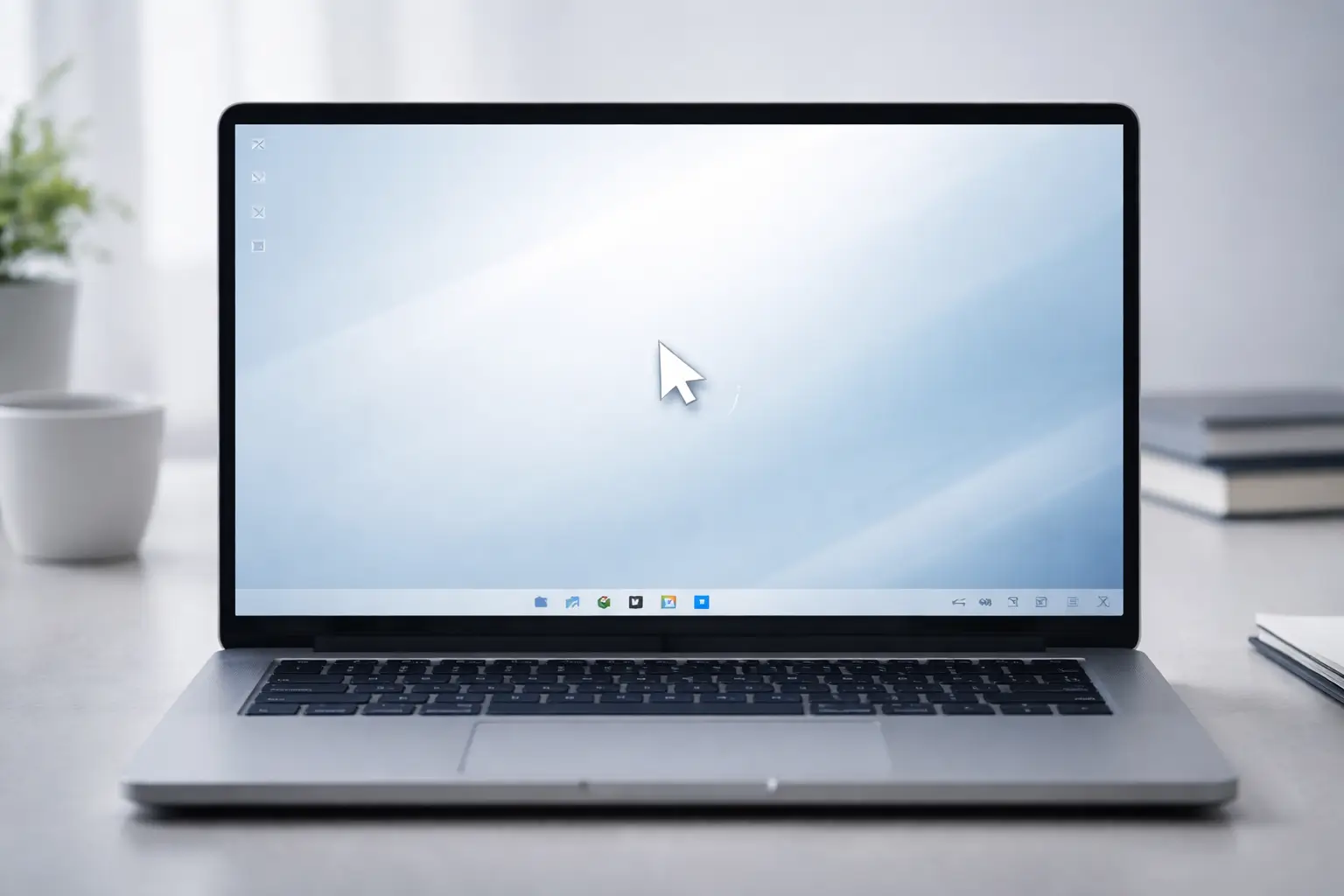
If your mouse is frozen in the middle of the screen, it’s rarely a random glitch. In most real-world cases, Windows is still running fine underneath. The issue usually sits in the input layer, not the entire system.
What separates a quick fix from hours of frustration is knowing exactly where to look first. This guide follows a proven troubleshooting flow that avoids guesswork and focuses only on what actually works.
What’s Really Happening When the Cursor Freezes
When the cursor locks in place, the problem usually comes down to one of these:
- Windows Explorer has stopped refreshing the interface
- The mouse driver has stopped responding
- A background application is interfering with input
Less often, it’s a hardware issue. The key is not jumping into advanced fixes before checking these layers in order.
Step 1: Reset the Windows Interface
Start here because it directly targets the UI layer.
Press Ctrl + Shift + Esc to open Task Manager. Use keyboard navigation if needed. Find Windows Explorer, select it, and restart it.
When Explorer freezes, it can lock the cursor visually even though the mouse is working in the background. Restarting it often resolves the issue instantly.
Step 2: Force Windows to Re-detect the Mouse
If nothing changed, move to the connection layer.
Disconnect your mouse and plug it into a different USB port. If you’re using a wireless mouse, turn it off and back on or replace the batteries.
This forces Windows to rebuild the device connection.
On laptops, take an extra step:
- Disable the touchpad temporarily
- Test only the external mouse
Conflicts between touchpad and external devices are more common than most users realize.
Step 3: Repair the Driver Layer
If the cursor is still stuck, the issue is likely within the driver layer.
Open Device Manager using the keyboard. Navigate to Mice and other pointing devices, update the driver, and if needed, uninstall the device and restart your system.
This forces Windows to install a clean driver version and often resolves hidden corruption.
Step 4: Check for Background App Interference
Not every cursor issue is caused by the mouse itself. Some applications take control of input behavior and can freeze or override the cursor.
Common culprits include:
- Screen recording tools
- Gaming overlays
- Remote desktop software
- Third-party touchpad utilities
If you’ve recently installed or updated software, that’s your strongest clue.
For example, overlay-related conflicts are known to cause input issues. If you’re dealing with similar behavior, you can check this guide on NVIDIA overlay not working for deeper insight.
Boot into Safe Mode. If the mouse works normally there, disable startup programs and re-enable them one by one to identify the exact cause.
Step 5: Don’t Ignore the Graphics Driver
The cursor is rendered through the graphics system. If your GPU driver becomes unstable, the cursor may appear frozen even when input is working.
This is especially relevant if:
- The issue started after a driver update
- You were gaming or using heavy applications
- The system shows flickering or lag
Updating or rolling back the graphics driver often resolves this. If you’re troubleshooting GPU-related issues, this NVIDIA guide can help you understand driver-related problems in more depth.
Step 6: Repair Windows System Files
If everything appears normal but the issue persists, check for system corruption.
Open Command Prompt as administrator and run a system file scan. This process detects and repairs broken Windows components automatically.
This step is particularly useful if your system has recently faced update errors. In such cases, issues like GPSVC service delays can also indicate underlying system instability.
Step 7: Stabilize USB Power Behavior
Windows sometimes limits USB power to save energy, especially on laptops. This can interrupt mouse input.
If your cursor freezes randomly or after being idle, disable USB power-saving settings in Device Manager.
Connection-related issues can sometimes overlap with network or system misconfigurations. If you’re facing multiple system inconsistencies, reviewing issues like Windows proxy detection errors can help identify deeper system-level problems.
When It’s Actually a Hardware Problem
If none of the above steps work, consider hardware failure.
You’re likely dealing with a faulty mouse if:
- The cursor is stuck even before Windows loads
- The issue appears on another computer
- There is visible damage to the mouse or cable
Testing with another mouse is the fastest way to confirm this.
What Actually Fixes This in Most Cases
Across real troubleshooting scenarios, most users resolve this issue with one of the following:
- Restarting Windows Explorer
- Reinstalling the mouse driver
- Removing a conflicting background application
The key is following a structured approach instead of trying random fixes.
Final Thoughts
A mouse stuck in the middle of the screen looks serious, but it rarely is. The system is usually fine — it’s just one layer failing to respond properly.
If you approach the issue step by step, you’ll not only fix it faster but also understand exactly what caused it.
FAQs
Why is my mouse stuck in the center but everything else works?
This usually means the system is running normally, but the mouse input layer has failed. It is commonly caused by driver issues, Windows Explorer freezing, or software interference.
Can Windows updates cause the mouse to freeze?
Yes. Some updates modify drivers or system components, which can temporarily break input behavior until drivers are reinstalled or updated.
How do I fix this without using a mouse?
Use keyboard shortcuts like Ctrl + Shift + Esc to open Task Manager, restart Windows Explorer, or restart your PC using Ctrl + Alt + Delete.
Why does my mouse freeze only in certain apps or games?
This usually indicates software conflict, especially with overlays or graphics drivers. Application-level interference is a common cause.
Is this issue related to performance or RAM problems?
Not directly. However, severe system lag or overloaded processes can make the cursor appear frozen, even though it’s technically still responding.