Quick Answer
The DoorDash Error Validating Basket occurs when the platform cannot verify your cart during checkout. This usually happens because of unavailable items, menu changes, expired promotions, payment issues, app cache problems, or temporary service disruptions. The fastest fixes are refreshing the cart, removing unavailable items, and updating your payment method.
What Does “Error Validating Basket” Mean on DoorDash?
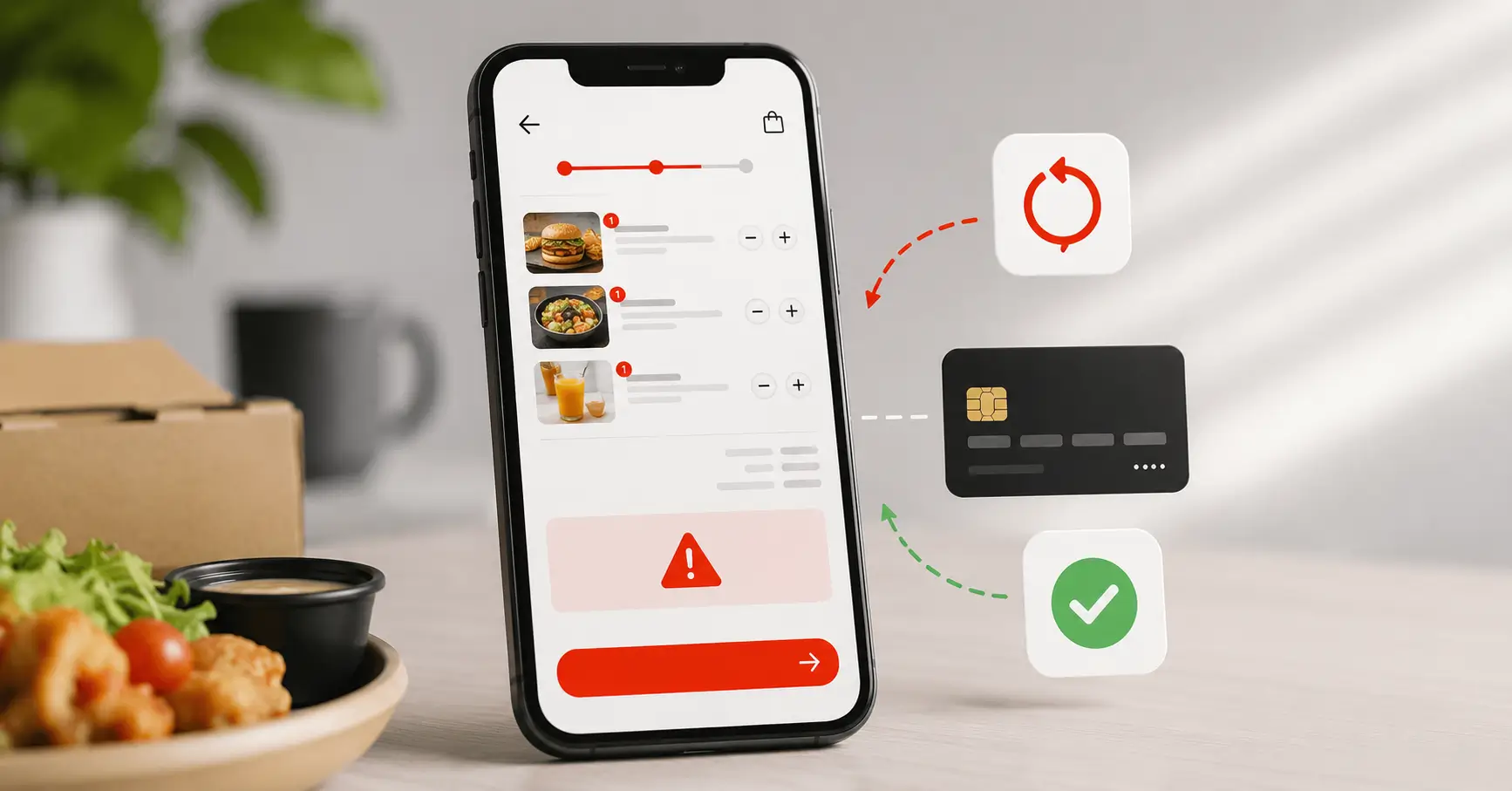
When DoorDash displays an “Error Validating Basket” message, it means the system cannot successfully verify the contents of your cart before processing the order.
Basket validation is a checkout process that confirms all order details are accurate and eligible for purchase. During validation, DoorDash checks:
- Item availability
- Current menu pricing
- Promotion eligibility
- Payment authorization
- Merchant inventory status
If any part of this verification process fails, the checkout process stops and the error appears.
In simple terms, DoorDash is unable to confirm that your order can be completed exactly as it appears in your cart.
Common Causes of the Error
Cart Contains Unavailable Items
Restaurants frequently update inventory throughout the day. If an item becomes unavailable after you add it to your cart, DoorDash may fail the validation process.
This is especially common during busy meal periods when popular menu items sell out quickly.
Merchant Menu Changed
Restaurants can modify prices, item descriptions, customization options, and menu availability at any time.
If your cart contains outdated menu information, DoorDash may reject the checkout request until the cart is refreshed.
Expired Promotions
Coupons, discounts, and promotional offers often have expiration dates or usage limits.
If a promotion in your cart is no longer valid, the system may return a basket validation error rather than automatically removing the discount.
Payment Method Issues
Payment processing problems can trigger validation failures.
Common examples include:
- Expired credit cards
- Insufficient funds
- Incorrect billing information
- Declined transactions
- Unsupported payment methods
App Cache Problems
The DoorDash app stores temporary data to improve performance.
Over time, corrupted cache files can interfere with checkout processes and prevent successful cart validation.
Session Timeout
If you’ve been inactive for an extended period, your DoorDash session may expire.
When this happens, stored cart information can become outdated, causing validation errors during checkout.
DoorDash Service Outage
Sometimes the issue has nothing to do with your device or account.
Temporary server outages, maintenance windows, or backend system disruptions can prevent orders from being processed correctly.
How to Fix DoorDash Error Validating Basket
Refresh the Cart
Start with the simplest solution.
- Close the cart screen.
- Return to the restaurant menu.
- Refresh the page or app.
- Open the cart again.
- Attempt checkout.
This often forces DoorDash to sync the latest menu and inventory data.
Remove and Re-Add Items
If refreshing does not work:
- Remove all items from the cart.
- Add each item again.
- Verify customizations.
- Proceed to checkout.
Rebuilding the basket eliminates outdated product information.
Update the App
Using an older version of the DoorDash App can create compatibility issues. Similar app-related glitches can occur when features stop working unexpectedly, such as when NVIDIA Overlay is not working due to outdated software.
To update:
- Open Google Play Store or App Store.
- Search for DoorDash.
- Tap Update if available.
- Restart the app.
Clear App Cache
Clearing cached data can resolve corrupted files causing validation failures.
For Android:
- Open Settings.
- Select Apps.
- Choose DoorDash.
- Tap Storage.
- Select Clear Cache.
After clearing cache, reopen the app and try again. Cache-related issues are common across many applications and browsers, especially when dealing with temporary file conflicts such as the File tmp Error HTML in Chrome.
Sign Out and Back In
Refreshing your account session can solve authentication and synchronization problems.
Steps:
- Open DoorDash.
- Sign out of your account.
- Close the app.
- Reopen the app.
- Sign in again.
Change Payment Method
A payment authorization issue may be blocking checkout.
Try:
- Switching credit cards
- Using a debit card
- Adding a new payment method
- Using a digital wallet if available
Then attempt checkout again.
Reinstall the App
If the problem persists:
- Uninstall DoorDash.
- Restart your device.
- Download the latest version.
- Sign in.
- Rebuild the cart.
This removes corrupted application files.
Use the Website Instead
If the DoorDash App continues showing errors, try the DoorDash Website.
Many users successfully place orders through the browser when the app experiences temporary issues.
Check DoorDash Server Status
Before spending too much time troubleshooting, verify whether DoorDash is experiencing service disruptions.
If servers are down, waiting for restoration is often the only solution. Connectivity-related interruptions can also prevent apps from communicating with servers properly, similar to issues covered in our guide on League of Legends unable to connect to server.
Fix the Error on Android
Android users can resolve basket validation problems with the following process:
- Force close the DoorDash app.
- Clear app cache from Settings.
- Update the app through Google Play Store.
- Sign out and sign back in.
- Remove unavailable items from the cart.
- Verify payment details.
- Restart the device.
- Reinstall the app if necessary.
These steps address most Android-specific checkout issues.
Fix the Error on iPhone
For iPhone users:
- Force close the DoorDash app.
- Check for app updates in the App Store.
- Verify your payment method.
- Remove and re-add cart items.
- Sign out and sign back in.
- Restart your iPhone.
- Delete and reinstall the app if the issue continues.
Since iOS does not provide a dedicated cache-clearing option, reinstalling the app often achieves the same result.
Fix the Error on Desktop Browser
Clear Browser Cache
Cached browser files can interfere with checkout.
Clear:
- Cached images
- Cookies
- Site data
Then reload the DoorDash website.
Try Incognito Mode
Incognito mode disables many stored browser elements that may be causing conflicts.
Open a private browsing window and attempt checkout again.
Disable Extensions
Some browser extensions can interfere with payment processing and checkout systems.
Temporarily disable:
- Ad blockers
- Privacy extensions
- Script blockers
Then test the checkout process.
Update Browser
Using an outdated browser may create compatibility issues.
Update Chrome, Edge, Firefox, or Safari to the latest version before retrying. Browser and network misconfigurations can sometimes create access problems similar to situations where Windows could not detect proxy settings.
When the Problem Is on DoorDash’s Side
Not every basket validation error originates from the customer.
Sometimes DoorDash experiences backend issues such as:
- Service disruptions
- Checkout system failures
- Merchant inventory synchronization delays
- Database update problems
- Temporary payment processing interruptions
When these issues occur, multiple users may report checkout failures simultaneously.
In such situations, troubleshooting on your device may not resolve the problem until DoorDash restores service.
Common Mistakes That Make the Error Worse
Repeated Checkout Attempts
Constantly pressing the checkout button can generate additional failed requests and may complicate troubleshooting.
Instead, identify and fix the underlying issue first.
Saving Invalid Payment Methods
Keeping expired or declined cards attached to your account can repeatedly trigger validation failures.
Regularly review payment settings.
Ignoring Menu Updates
Old carts often contain outdated menu information.
If you saved a cart several days ago, rebuild it before ordering.
Using Outdated App Versions
Older app versions may contain bugs or compatibility problems that have already been fixed in newer releases.
Keeping the app updated helps prevent checkout issues.
Best Practices to Prevent Future Basket Errors
To reduce the chances of encountering this error again:
- Keep the DoorDash App updated
- Verify payment methods regularly
- Rebuild carts that have been saved for extended periods
- Check item availability before checkout
- Avoid leaving carts inactive for long periods
- Remove expired promotions before ordering
- Maintain a stable internet connection
Reliable connectivity is essential for successful order validation. If you’re experiencing broader network performance problems, you may also find it useful to learn why Steam downloads can be slow, as many of the same network troubleshooting principles apply.
Conclusion
The DoorDash Error Validating Basket usually occurs when the system cannot verify cart information during checkout. In most cases, the issue is caused by unavailable items, menu updates, payment method problems, or temporary service disruptions.
The three fastest solutions are:
- Refresh and rebuild the cart.
- Update or change your payment method.
- Sign out and back into the DoorDash account.
If none of these fixes work, check for DoorDash service outages or contact customer support for assistance.
FAQ
What does Error Validating Basket mean on DoorDash?
It means DoorDash cannot successfully verify your cart information during checkout due to inventory, pricing, promotion, payment, or system-related issues.
Why does DoorDash keep rejecting my cart?
The cart may contain unavailable items, outdated menu information, expired promotions, or payment details that cannot be validated.
Can payment methods cause basket validation errors?
Yes. Expired cards, insufficient funds, billing mismatches, and declined transactions are common causes of basket validation failures.
Does clearing cache fix the issue?
Yes. Clearing app cache can remove corrupted temporary files that interfere with the checkout process, particularly on Android devices.
Is the error caused by DoorDash servers?
Sometimes. Service outages, inventory synchronization failures, and temporary checkout system disruptions can all trigger basket validation errors.
Why did my coupon stop working?
The promotion may have expired, reached its usage limit, or no longer meet the order requirements.
Can unavailable menu items trigger the error?
Yes. If a restaurant removes an item or runs out of stock after you add it to the cart, DoorDash may reject the order during validation.
Should I contact DoorDash support?
Yes. If all troubleshooting steps fail and the error continues, contacting DoorDash support is the best next step to identify account-specific or technical issues.