How to Pair a Ubotie Keyboard
Quick Answer: Pair a Ubotie Keyboard in Minutes
How to pair a Ubotie keyboard:
- Turn on the keyboard.
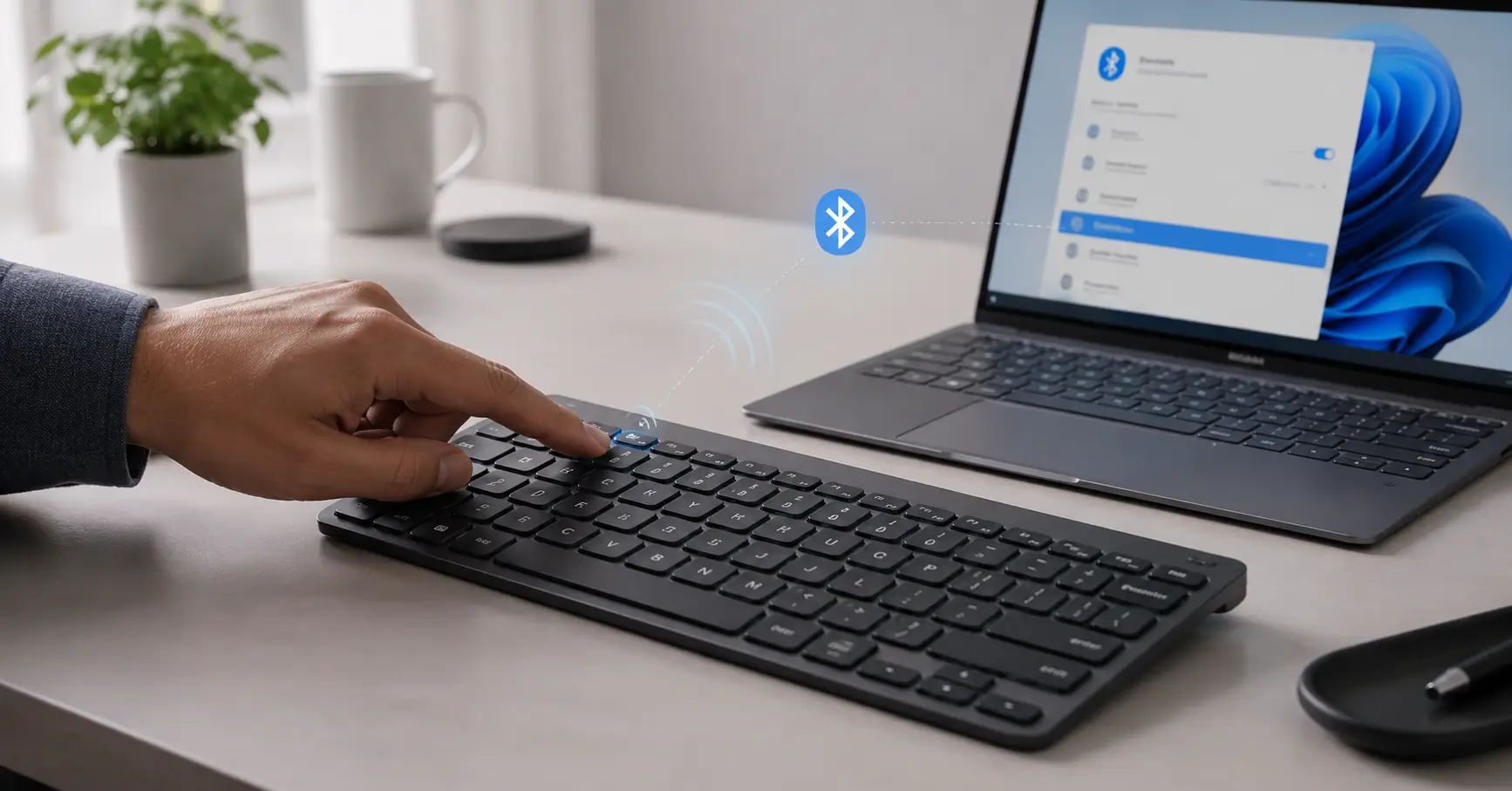
- Press the Bluetooth pairing key combination.
- Wait for the pairing indicator to blink.
- Open Bluetooth settings on your device.
- Select the Ubotie keyboard.
- Complete pairing.
A Ubotie keyboard connects through Bluetooth and usually takes less than a minute to pair with a compatible device. Once the keyboard enters pairing mode, it becomes visible in your device’s Bluetooth settings and can be connected with a few clicks.
What Is Ubotie Keyboard Pairing?
Ubotie keyboard pairing is the process of connecting your keyboard to a computer, tablet, or smartphone using Bluetooth.
Bluetooth pairing allows two devices to recognize and communicate with each other wirelessly. During pairing, the keyboard enters a discoverable state so your device can find and connect to it.
Why Is Pairing Required?
Pairing is necessary because:
- It establishes a secure Bluetooth connection.
- It allows device discovery.
- It enables wireless typing without cables.
- It stores the connection for future use.
Without Bluetooth pairing, your device cannot communicate with the keyboard.
How to Put a Ubotie Keyboard Into Pairing Mode
Before connecting your keyboard, you must activate pairing mode.
Locate Bluetooth Key
Most Ubotie Bluetooth keyboards include a dedicated Bluetooth key or a function key combination.
Look for:
- Bluetooth symbol key
- FN + Bluetooth key combination
- Device selection keys (if supported)
Check the keyboard layout carefully because key placement may vary between models.
Activate Pairing Mode
Follow these steps:
- Turn on the keyboard.
- Press and hold the Bluetooth pairing button or key combination.
- Hold for approximately 3 to 5 seconds.
- Release when the pairing indicator begins flashing.
The keyboard is now discoverable.
Verify LED Indicator
The easiest way to confirm pairing mode is by checking the LED light.
| LED Status | Meaning |
|---|---|
| Flashing rapidly | Pairing mode active |
| Solid light | Connected |
| No light | Pairing inactive or battery issue |
If the light does not blink, replace the batteries and try again.
How to Pair a Ubotie Keyboard With Windows 11
Open Bluetooth Settings
- Click Start.
- Open Settings.
- Select Bluetooth & devices.
- Turn Bluetooth on if it is disabled.
Add Device
- Click Add device.
- Select Bluetooth.
- Wait for Windows 11 to search for nearby devices.
- Locate your Ubotie keyboard in the list.
Complete Pairing
- Click the keyboard name.
- If prompted, enter the pairing code displayed on screen.
- Press Enter on the Ubotie keyboard.
- Wait for Windows to confirm the connection.
Once connected, the keyboard should appear under connected devices.
Suggested Screenshot: Windows 11 Bluetooth & Devices screen.
How to Pair a Ubotie Keyboard With Windows 10
Enable Bluetooth
- Click Start.
- Open Settings.
- Select Devices.
- Click Bluetooth & other devices.
- Turn Bluetooth on.
Add Bluetooth Device
- Select Add Bluetooth or other device.
- Choose Bluetooth.
- Wait for available devices to appear.
- Select your Ubotie keyboard.
Confirm Connection
- Follow any pairing prompts.
- Enter the pairing code if required.
- Press Enter.
- Wait for the status to change to Connected.
Your keyboard should now work with Windows 10.
Suggested Screenshot: Windows 10 Bluetooth device pairing window.
Ubotie Keyboard Not Pairing? Try These Fixes
If your keyboard will not connect, try the following solutions.
Replace Batteries
Low battery power is one of the most common causes of pairing problems.
- Install fresh batteries.
- Verify correct battery orientation.
- Turn the keyboard off and on again.
Remove Existing Bluetooth Profile
An old Bluetooth connection may interfere with pairing.
Steps:
- Open Bluetooth settings.
- Find the Ubotie keyboard.
- Select Remove device.
- Restart pairing mode.
- Connect again.
If Windows is having broader connectivity problems, you may also need to investigate network configuration issues such as Windows could not automatically detect this network’s proxy settings.
Restart Bluetooth Service
Windows Bluetooth services can occasionally stop responding.
- Press Windows + R.
- Type services.msc.
- Locate Bluetooth Support Service.
- Restart the service.
If system services are stuck during startup or login, see how to fix the Please Wait for GPSVC issue in Windows.
Update Bluetooth Driver
Outdated drivers can cause connection failures.
- Open Device Manager.
- Expand Bluetooth.
- Right-click your Bluetooth adapter.
- Select Update driver.
- Install available updates.
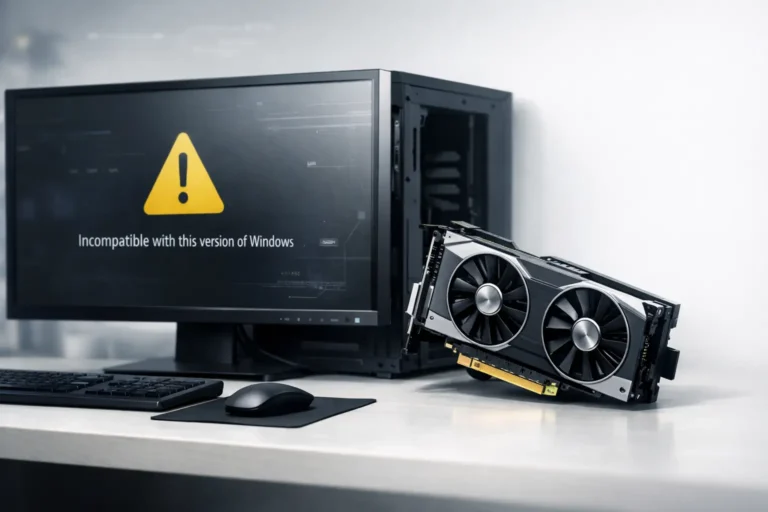
Driver compatibility problems can also prevent hardware from functioning correctly. If you encounter driver installation errors, check this guide on fixing the NVIDIA driver not compatible with this Windows version error.
Reset Pairing Mode
To reset pairing mode:
- Turn off the keyboard.
- Remove batteries for 30 seconds.
- Reinstall batteries.
- Turn the keyboard back on.
- Re-enter pairing mode.
This refreshes the Bluetooth connection process.
Common Ubotie Keyboard Pairing Errors
Keyboard Not Showing
Possible causes:
- Pairing mode not activated
- Weak batteries
- Bluetooth disabled on computer
- Keyboard already connected to another device
Pairing Failed
Possible causes:
- Device too far away
- Temporary Bluetooth glitch
- Corrupted Bluetooth profile
- Driver issues
Connected But Not Typing
Possible causes:
- Incorrect keyboard selected
- Pairing incomplete
- Input settings conflict
- Temporary connection freeze
If your cursor or input devices are behaving abnormally, you may also find it helpful to troubleshoot issues such as a mouse stuck in the middle of the screen.
Disconnecting Frequently
Possible causes:
- Low battery levels
- Wireless interference
- Outdated Bluetooth driver
- Excessive distance from device
Best Practices for Reliable Bluetooth Pairing
Follow these recommendations to maintain a stable connection.
Keep Firmware Current
If firmware updates are available for your keyboard model, install them according to the manufacturer’s instructions.
Reduce Interference
Keep the keyboard away from:
- Wireless speakers
- Bluetooth accessories
- Microwave ovens
- Crowded wireless environments
Maintain Battery Levels
Replace batteries before they become critically low.
Benefits include:
- Faster pairing
- Stronger signal stability
- Fewer random disconnects
Stay Within Bluetooth Range
For best performance:
- Keep devices within 10 meters (33 feet).
- Avoid walls and large metal objects between devices.
Frequently Asked Questions
How do I reset my Ubotie keyboard?
Turn off the keyboard, remove the batteries for approximately 30 seconds, reinstall them, and then activate pairing mode again.
Why won’t my Ubotie keyboard enter pairing mode?
Common causes include depleted batteries, incorrect key combinations, or a previous Bluetooth connection preventing discoverability.
Can I connect my Ubotie keyboard to multiple devices?
Some Ubotie models support multiple device connections, while others support only one active Bluetooth connection at a time. Check your keyboard model specifications.
How long does Bluetooth pairing take?
Most Bluetooth pairings complete within 30 to 60 seconds after the keyboard enters pairing mode.
Why does my keyboard disconnect?
Frequent disconnections are usually caused by low battery power, Bluetooth interference, outdated drivers, or excessive distance between devices.
Conclusion
Pairing a Ubotie keyboard is usually a quick process that involves turning on the keyboard, activating pairing mode, and connecting through your device’s Bluetooth settings. Whether you are using Windows 11 or Windows 10, the steps are straightforward and typically take only a few minutes.
If the keyboard does not connect, start by checking battery levels, removing old Bluetooth profiles, updating your Bluetooth driver through Device Manager, and resetting pairing mode. Following these troubleshooting steps can resolve most Ubotie keyboard Bluetooth pairing issues and help maintain a reliable wireless connection.