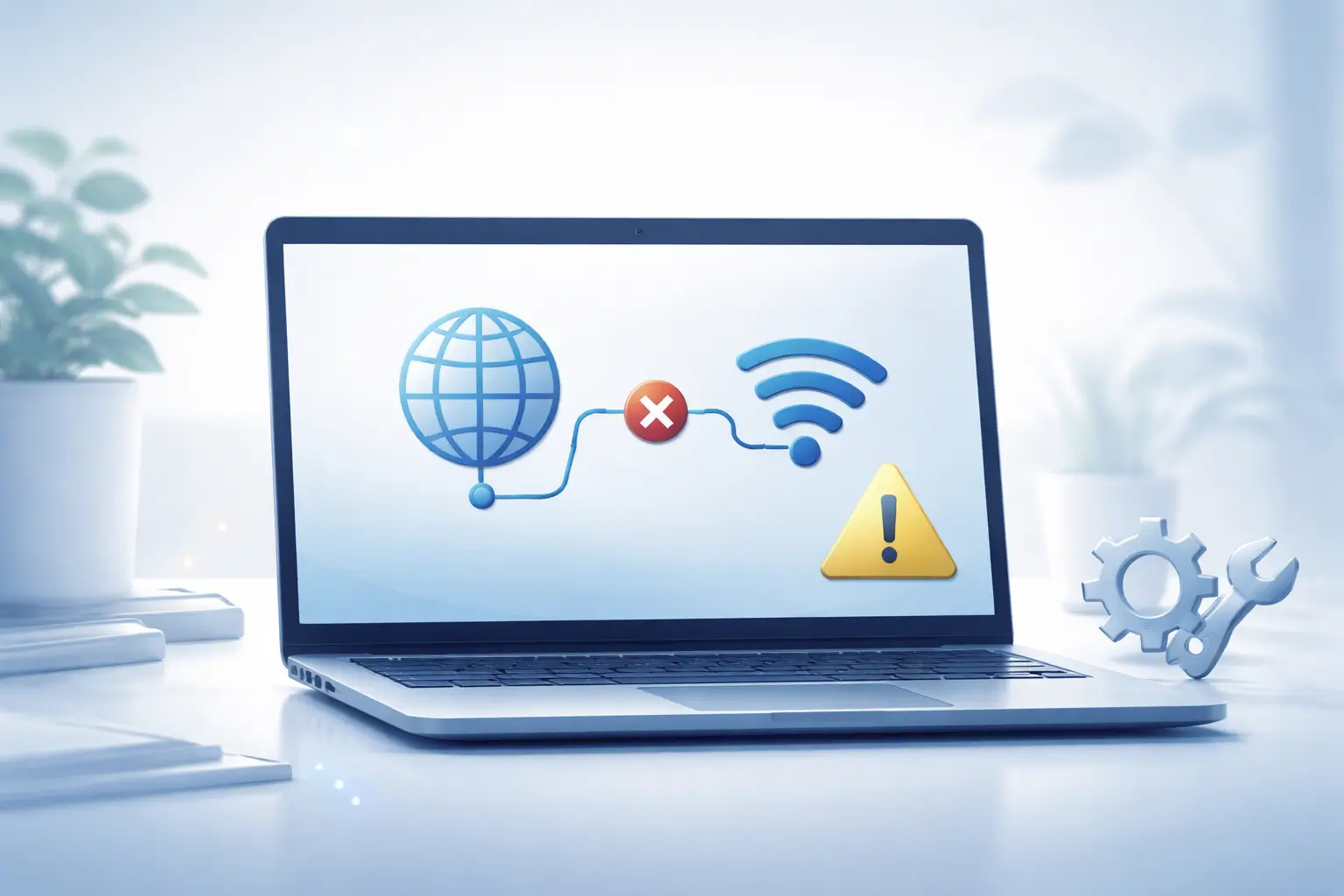
It usually begins with a simple step. You run the Windows troubleshooter expecting a quick fix, and instead you see a confusing message: “Windows could not automatically detect this network’s proxy settings.”
At this point, your internet may partially work, break randomly, or stop entirely. This inconsistency is the real problem. Windows is not failing completely, it is struggling to decide how your system should connect to the internet.
If you are facing this issue right now, you are not alone. It is one of the most common network errors in Windows, and in most cases, it is caused by misconfigured settings rather than any serious system failure.
What This Error Actually Means
Windows automatically decides whether your connection should use a proxy server or connect directly. When it fails to make that decision due to conflicting or broken settings, this error appears.
This usually happens when:
- Your system has conflicting network instructions
- A proxy setting exists but is incomplete or outdated
- Windows networking components are not syncing properly
Instead of treating this as a complex issue, think of it as a configuration confusion inside Windows.
Why This Error Happens
From real-world troubleshooting experience, this issue rarely appears without a trigger. Something usually changes before the error starts.
Common triggers include:
- Installing or removing VPN software
- Windows updates or sudden system restarts
- Switching between multiple WiFi networks
- Malware or unwanted software modifying settings
If you recently made any of these changes, that is likely the root cause.
Start With the Simplest Fix
Before trying advanced methods, check your proxy settings. This is the most overlooked step, yet it fixes a large number of cases.
Go to Settings > Network and Internet > Proxy and check:
- Turn OFF “Use a proxy server”
- Keep “Automatically detect settings” ON
Even if you never enabled a proxy manually, some applications can change this setting in the background.
After making this change, reconnect your internet and test again.
Reset Network Configuration Properly
If the issue persists, the problem is likely deeper in your system. Resetting the network stack clears hidden conflicts and restores default behavior.
Open Command Prompt as administrator and run:
netsh int ip reset
netsh winsock reset
ipconfig /release
ipconfig /renew
ipconfig /flushdns
This process:
- Rebuilds TCP/IP configuration
- Resets network sockets used by applications
- Refreshes IP and DNS settings
Restart your system after running these commands.
If you are dealing with other Windows-level issues as well, you might also find this guide useful: Please Wait for GPSVC Error Fix.
Check Hidden LAN Settings
Some proxy configurations do not appear in the main settings panel. They exist in older Windows network settings.
Press Windows + R, type inetcpl.cpl, and open LAN settings.
Make sure:
- Automatically detect settings is enabled
- Use a proxy server is unchecked
Even a small mismatch here can override modern settings and trigger this error.
When VPN or Third Party Tools Cause the Problem
VPN software and network tools often modify proxy and DNS settings. Even after uninstalling them, leftover configurations can remain active.
If you are using or recently removed a VPN:
- Disable or uninstall it completely
- Restart your system
- Check if the issue is resolved
If your internet starts working normally, the VPN configuration was the root cause.
Update Network Drivers
Driver issues do not always look obvious, but they can break how Windows interprets your network.
Update your network adapter driver from your device manufacturer’s website. This ensures compatibility and stability.
Driver-related issues can also lead to other problems like display or system instability. If you are facing related errors, you can check: Black Screen After NVIDIA Driver Update.
Scan for Malware if Settings Keep Changing
If your proxy settings keep enabling themselves, that is a warning sign.
Run a full system scan using Windows Security or a trusted antivirus tool. After removing any threats, reset your network again.
This ensures that malicious changes do not return.
Test on Another Network
If none of the fixes work, switch to a different network.
- If the issue disappears, your router or ISP is the cause
- If the issue remains, the problem is inside your system
This simple test helps you avoid unnecessary troubleshooting.
What Works in Most Cases
From practical experience, these fixes solve the majority of cases:
- Disabling incorrect proxy settings
- Resetting the network stack
- Fixing LAN configuration conflicts
- Removing VPN interference
If you have tried all of these, the issue is usually resolved.
For a deeper breakdown of this error, you can also read: Detailed Proxy Error Fix Guide.
Final Thoughts
This error looks technical, but it usually comes down to one thing: Windows is dealing with conflicting instructions about how to connect to the internet.
Instead of trying random fixes, focus on restoring a clean and consistent network setup. Once you do that, the issue almost always disappears.
Keeping your system simple, avoiding unnecessary network tools, and updating drivers regularly will help prevent this issue in the future.
FAQs
Why does this proxy error appear even when I never used a proxy?
This happens because some software, especially VPNs or browser tools, can enable proxy settings without clear user input. Even after removal, those settings may remain active.
Can this error affect only specific apps?
Yes. Some applications rely on system proxy settings while others use independent connections. That is why your browser may work while other apps fail.
Is resetting network settings safe?
Yes, it is completely safe. It will not delete personal data, but it will remove saved WiFi networks and reset adapters, so you will need to reconnect.
Why does the issue come back after fixing it?
If the error returns, something is actively modifying your network configuration. This is often caused by VPN software, background services, or malware.
Can my internet provider cause this issue?
In most cases, no. This is usually a system-level problem. However, if it only happens on one network, your router or ISP configuration could be involved.