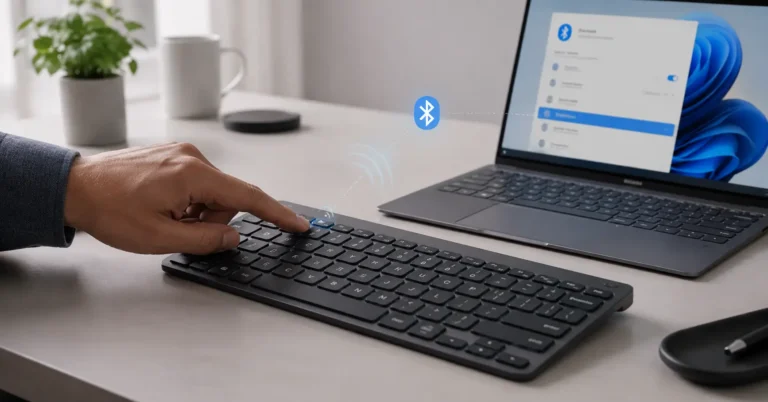
Have you ever pressed Windows + Shift + S to take a screenshot, only to realize nothing happens? Or maybe you’ve noticed your Shift key suddenly stopped typing capital letters or special characters. These two problems often feel unrelated, but in reality, they’re part of the same underlying issue — how Windows handles keyboard input and shortcut processing.
This guide walks you through why your Shift key or screenshot shortcut stopped working, and how to fix it — whether the fault lies in your keyboard, Windows settings, or the Snipping Tool itself. The solutions below apply to both Windows 10 and Windows 11 and are written from firsthand testing and diagnostic experience.
1. Understanding the Problem: Shortcut Bug or Keyboard Failure?
When the Windows + Shift + S shortcut fails, it’s easy to assume something’s wrong with the Snipping Tool. But often, the issue starts with the Shift key itself.
If you notice that pressing Shift doesn’t capitalize text in apps like Word, Notepad, or Excel, the problem is broader than just the screenshot tool. In fact, similar cross-app input failures can show up in other programs — for example, when Excel freezes with the “Retrieving data. Wait a few seconds and try to cut or copy again” message (see fix).
The key is identifying whether your Shift key has stopped responding system-wide or whether only certain shortcuts are affected.
2. Why Does the Shift Key or Screenshot Shortcut Stop Working?
From years of system repair work, I’ve found that this issue almost always falls into one of four categories:
- Hardware problems — Dust or wear beneath the key, or a damaged keyboard membrane.
- Accessibility conflicts — Sticky Keys or Filter Keys intercepting Shift presses.
- Driver or update issues — Windows updates often cause brief driver mismatches, especially in laptops.
- Snipping Tool glitches — Known Windows 10/11 builds (like 19045) occasionally break hotkey registration.
It’s not very different from what happens when Windows services hang at startup — like the GPSVC process issue described in this Windows login delay guide. The root cause is often a chain reaction of dependent services, and the same logic applies here.
3. Quick Diagnostic: Identify Whether It’s the Shift Key or Shortcut
Here’s a simple test that immediately narrows down your troubleshooting path.
- Open Notepad and try typing capital letters.
- If neither Shift key works → it’s a keyboard or driver issue.
- If neither Shift key works → it’s a keyboard or driver issue.
- Next, press Windows + Shift + S.
- If nothing happens → it’s a Snipping Tool or service issue.
- If nothing happens → it’s a Snipping Tool or service issue.
Testing both left and right Shift keys also matters. If only one fails, you may need to enable the right Shift key manually — we’ll get to that later.
4. Check the Keyboard Hardware First
Start with the basics. Unplug your keyboard (if external), clean the Shift keys gently with compressed air, and reconnect it.
Laptop users can try an external USB keyboard to check whether the problem is hardware-specific.
If the external keyboard works fine, the built-in one likely has a membrane issue and needs replacement.
In rare cases, your Shift key may behave inconsistently during graphics-intensive tasks or high-load sessions — similar to when your game downloads slow down unexpectedly. This is often a sign of background processes consuming system resources, which you can diagnose following our guide on why your Steam download is so slow.
5. Disable Sticky Keys and Filter Keys
If your Shift key stopped working suddenly, there’s a good chance Sticky Keys or Filter Keys were turned on accidentally.
To fix this:
- Open Settings → Accessibility → Keyboard (Windows 11)
- Or Settings → Ease of Access → Keyboard (Windows 10)
- Turn both Sticky Keys and Filter Keys off
Try typing again in Notepad — if the Shift key starts working, that was the culprit. It’s a surprisingly common cause.
6. Update or Reinstall Keyboard Drivers
Driver conflicts are one of the most overlooked causes of Shift button not working problems.
To fix it:
- Right-click Start → Device Manager → Keyboards
- Right-click your keyboard → Update driver
- If that fails, choose Uninstall device, reboot, and let Windows reinstall it automatically.
This step resolves most Shift key not working in Windows 11 cases — particularly after cumulative updates.
7. Restart Windows Explorer and Input Services
If Windows + Shift + S is the only thing not working, your keyboard is fine — the issue lies in Windows services.
Open Task Manager (Ctrl + Shift + Esc) → Find Windows Explorer → Right-click → Restart.
Then try the shortcut again. If the screen dims and a snipping toolbar appears, your problem is fixed.
Sometimes this issue ties into deeper driver conflicts (similar to what happens with DisplayPort connectivity errors). If you’ve also faced “No DP Signal” messages before, you can refer to this fix for Dell devices — both problems stem from service restarts and display/driver interactions.
8. Reset or Reinstall the Snipping Tool
The Windows + Shift + S shortcut specifically calls the Snipping Tool process (SnippingTool.exe). If it’s broken or unregistered, no screenshot overlay will appear.
Here’s how to reset it:
- Go to Settings → Apps → Installed Apps → Snipping Tool
- Click Advanced options → Reset
If that doesn’t help, uninstall and reinstall it from the Microsoft Store.
After a recent update, Microsoft merged Snip & Sketch with the Snipping Tool — the shortcut is the same, but the app is new under the hood.
9. Enable Clipboard History and Notifications
The Snipping Tool depends on the Clipboard User Service to copy and store screenshots.
If clipboard history or notifications are off, the tool might seem unresponsive.
Go to Settings → System → Clipboard and enable Clipboard history.
Then visit Settings → System → Notifications and ensure notifications are turned on for Snipping Tool.
Once both are active, restart your PC and try the shortcut again.
10. Run System File Repair
If both Shift keys and the Snipping shortcut have stopped responding, corrupted system files could be the reason.
Open Command Prompt (Admin) and run:
sfc /scannow
DISM /Online /Cleanup-Image /RestoreHealth
Once done, restart and test again.
This step often resolves random input failures — the same way command repairs help restore corrupted system services in other Windows problems like GPU-related performance lags (see NVIDIA 2020 setup guide for an example of driver-level fixes).
11. Enable or Remap the Right Shift Key
If the right Shift key alone doesn’t work, you can remap it using PowerToys or SharpKeys.
Launch PowerToys → Open Keyboard Manager → Remap a key → Map another unused key (like Caps Lock) to Shift.
Once done, open Notepad and test capitalization.
This workaround not only verifies whether your key is physically dead but also helps in day-to-day tasks until you replace your keyboard.
12. If Nothing Works: Deep System Troubleshooting
If you’ve tried everything and the problem persists, boot your PC into Safe Mode and test your keyboard again.
If the Shift key works in Safe Mode, a third-party service or driver is interfering in normal boot. Disable startup apps one by one until the issue disappears.
You can also use the Keyboard Troubleshooter built into Windows — just search for it in the Start menu.
This diagnostic approach mirrors how Windows handles other resource conflicts, such as when display or startup services hang — similar to issues discussed in the GPSVC delay article.
13. Verify Everything Works
Once you’ve applied the right fix, test both:
- Typing uppercase letters using both Shift keys
- Pressing Windows + Shift + S to see if the screen dims and the snip toolbar appears
If both are working smoothly, the issue is resolved. At this point, it’s a good idea to create a System Restore Point so your keyboard and shortcut settings can easily be rolled back if future updates interfere again.
14. Windows 11 24H2 Update and Snipping Tool Merge
With Windows 11 24H2, Microsoft finalized the Snipping Tool transition — Snip & Sketch is now fully retired.
If you’re running this version, make sure your system is updated, since older Snipping Tool builds caused hotkey registration bugs.
Microsoft’s forums confirm that the Clipboard User Service and Notifications service are the two key dependencies. Keeping those active prevents most screenshot shortcut issues going forward.
FAQs
Q1. Why is my Shift key not working?
It could be due to Sticky Keys, driver conflicts, or physical wear. Try disabling accessibility features first.
Q2. How do I fix my Shift key not working in Windows 11?
Reset keyboard drivers, disable Sticky Keys, and reinstall the Snipping Tool if shortcuts also fail.
Q3. What if only one Shift key works?
Remap or enable the right Shift key using PowerToys or SharpKeys.
Q4. Why does Windows + Shift + S do nothing?
The Snipping Tool process may be corrupted or missing clipboard permissions. Resetting it usually helps.
Q5. Can updates cause this issue?
Yes. Major Windows updates can disrupt hotkey registration temporarily, just as they can affect driver-based features like DisplayPort or GPU handling.
Conclusion: From Stuck Shift Keys to Working Screenshots Again
Most “Shift key not working” and “Windows + Shift + S not working” problems boil down to small but overlooked settings — accessibility toggles, driver conflicts, or background services.
By methodically identifying the cause, you can fix both input and screenshot issues without reinstalling Windows.
And remember, just like fixing DisplayPort signal errors or Excel clipboard hangs, these problems usually trace back to interrupted system services — not hardware damage.
Once fixed, your Shift keys will type normally again, and your Snipping Tool shortcut will capture screenshots instantly — just as it should.