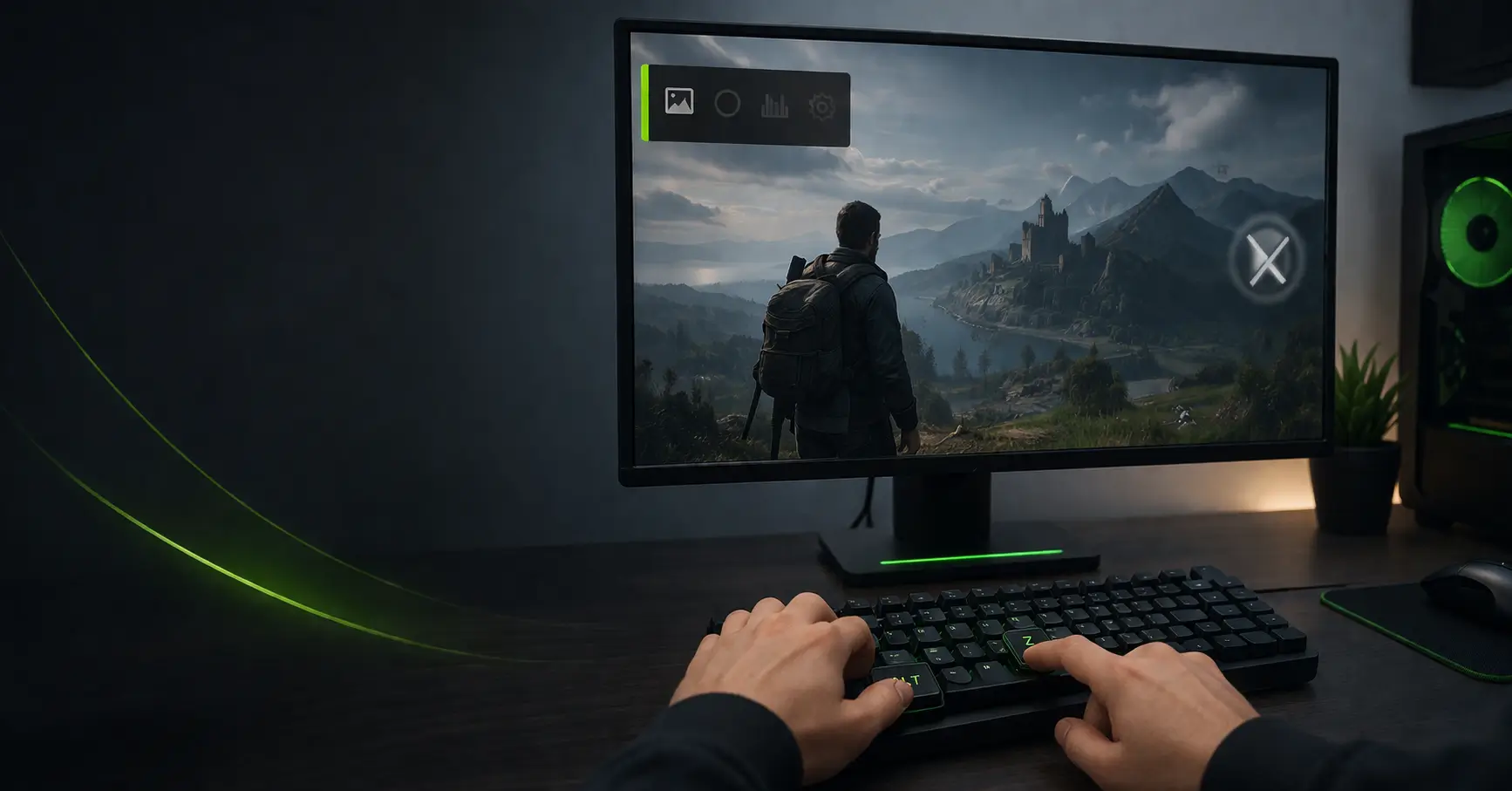
If the NVIDIA overlay suddenly stops opening, it can feel like something serious broke. You press Alt + Z, nothing happens, and features like recording, instant replay, and performance stats disappear.
In reality, this issue is rarely complicated. It usually comes down to a broken service, a driver conflict, or a setting that quietly stopped working. The challenge is not fixing it, but knowing where to look first.
If you’re already facing broader GPU issues like crashes or display glitches, you may also want to check related problems such as games crashing after NVIDIA driver update or black screen after NVIDIA driver update.
What the NVIDIA Overlay Actually Depends On
The overlay isn’t a standalone feature. It runs through NVIDIA GeForce Experience and relies on multiple layers working together.
- Background NVIDIA services
- Clean GPU drivers
- Proper Windows permissions
- No conflicts from other overlay tools
If any one of these fails, the overlay either won’t open or behaves inconsistently. In some cases, users also report issues like NVIDIA control panel not opening, which points to a deeper system-level problem.
The First Check That Solves More Cases Than You Expect
Start by opening GeForce Experience and checking if the in-game overlay is enabled.
This setting sometimes resets after updates. More importantly, it can appear enabled but fail internally. Turning it off, waiting a few seconds, and enabling it again forces the overlay to reload.
At this point, try the Alt + Z shortcut again. If it opens, you’re done. If not, move forward without repeating the same step.
When Alt + Z Does Nothing at All
If the shortcut doesn’t respond, the issue is usually deeper than settings.
In most cases, one of the NVIDIA background services has stopped working properly. These services run silently, so when they fail, you don’t get an error message.
Restarting them often restores the overlay instantly. Focus only on the essential services:
- NVIDIA Display Container
- NVIDIA LocalSystem Container
- NVIDIA NetworkService Container
Restart them from the Services panel and test again.
Driver Problems: The Most Reliable Root Cause
If the overlay still isn’t working, the next place to look is your GPU driver.
Overlay features depend heavily on how drivers interact with Windows. Even a partially corrupted update can break the overlay while everything else seems fine.
A normal update is worth trying first, but if the issue persists, go for a clean installation.
- Download drivers directly from NVIDIA
- Choose Custom Installation
- Select “Perform a clean installation”
If you’ve faced installation issues before, refer to this guide on NVIDIA driver installation errors.
The Overlooked Problem: Other Apps Interfering
Many users miss this completely.
Apps like Discord, OBS, and performance tools also use overlays. When multiple overlays try to hook into the same system layer, conflicts happen.
You won’t get a warning. The NVIDIA overlay just stops responding.
If you’ve recently installed or updated any of these, test by disabling their overlays temporarily:
- Discord overlay
- Steam overlay
- OBS Studio
- MSI Afterburner
If the overlay starts working again, you’ve identified the conflict.
When It Works on Desktop but Not Inside Games
If the overlay opens on your desktop but not in-game, the issue is usually related to how the game is running.
Games behave differently depending on display mode. Try switching between fullscreen, borderless, and windowed mode.
This kind of behavior is also common in gaming-related issues like League of Legends connection errors, where system-level conflicts affect gameplay features.
Also check the “Desktop Capture” setting inside the overlay. Enabling it improves compatibility in many cases.
Permissions Can Quietly Block the Overlay
On some systems, especially after updates, permission restrictions interfere with overlay features.
Running GeForce Experience as an administrator often resolves this instantly and ensures the application can access required system processes.
When You Need a Full Reset
If none of the above steps work, the problem is likely tied to corrupted files.
At this point, the most effective approach is resetting the entire setup:
- Uninstall GeForce Experience
- Restart your system
- Reinstall the latest version
- Combine it with a clean driver installation
If your system recently had update conflicts, this guide on Windows update conflicts with NVIDIA drivers can give additional clarity.
Quick Fix Path (If You Want the Fastest Solution)
If you want a fast resolution, follow this order:
- Toggle overlay off and on
- Restart NVIDIA services
- Clean reinstall GPU drivers
- Disable other overlays
- Reinstall GeForce Experience
When the Issue Isn’t Fixable From Your Side
In rare cases, the problem isn’t your system.
Some older or heavily modified games don’t fully support overlays. Others may conflict due to how their graphics engine works.
To confirm, test the overlay in a different game. If it works there, your system is fine.
Final Thoughts
The NVIDIA overlay not working is a common issue, but it follows clear patterns. It’s almost always tied to drivers, services, or conflicts from other applications.
Instead of trying random fixes, approach the problem step by step. Start simple, test after each change, and move deeper only when needed. That’s how you solve it efficiently.
FAQs
Why is NVIDIA overlay not opening even when enabled?
This usually happens due to background service failures or driver issues. Restarting NVIDIA services or performing a clean driver installation resolves most cases.
Does NVIDIA overlay affect game performance?
In most systems, the impact is minimal. However, features like instant replay can use additional GPU resources, especially on lower-end systems.
Can Windows updates break NVIDIA overlay?
Yes, some updates can create compatibility issues with drivers or services, which may cause the overlay to stop working temporarily.
Why does NVIDIA overlay crash or freeze during gameplay?
This is often caused by conflicts with other overlay-based apps or unstable GPU drivers. Disabling competing overlays usually helps.
Is NVIDIA overlay supported on all games?
No, some older or non-standard games may not fully support overlays due to engine or API limitations.